Linux Desktop Theme Switcher
I’ve been Linux ricing for quite a while, and there’s one thing that always bugs me whenever I want to change my setup. Every time I change my wallpaper, I also have to change everything else to match. That means editing my Waybar colors, changing my Rofi theme, updating my terminal colors, tweaking Hyprland, and sometimes opening a color picker just to get a palette that actually looks good with the wallpaper. It gets repetitive pretty quickly. So I thought: why not just automate all of it? That became my small weekend project—a theme switcher for my entire Linux setup.
The Idea
The goal was pretty straightforward: Pick a wallpaper, and everything changes with it. Instead of manually editing every config file, I wanted one script that could automatically update: Waybar, Rofi, Terminal, Hyprland colors, wallpaper.
For this, I mainly used three packages:
pywal16 generates a color scheme based on the wallpaper.
AWWW handles changing the wallpaper and gives me animated transitions.
fzf gives me a simple interactive menu where I can select which wallpaper I want.
#!/bin/bash

        WALLPAPER_DIR="$HOME/wallpapergif"

        # Start awww daemon if not running
        if ! pgrep -x "awww-daemon" >/dev/null; then
            echo "Starting awww daemon..."
            awww-daemon &
            sleep 0.5
        fi

        # menu selector
        SELECTION=$(
            find "$WALLPAPER_DIR" -type f \
                \( -iname "*.jpg" -o -iname "*.jpeg" -o -iname "*.png" -o -iname "*.gif" \) |
            fzf \
                --prompt="Select Theme For Ashton: " \
                --height=40% \
                --layout=reverse \
                --border # settings for fzf
        )

        # Exit if nothing selected
        [ -z "$SELECTION" ] && exit 0

        # Apply wallpaper
        awww img "$SELECTION" \
            --transition-type wipe \
            --transition-step 120 \
            --transition-fps 165

        # Generate terminal/theme colors
        if command -v wal >/dev/null 2>&1; then # checks if pywal is installed

            wal -i "$SELECTION" -q # generate colors of the wallpaper

            if file --mime-type -b "$SELECTION" | grep -q "gif"; then
                magick "${SELECTION}[0]" /tmp/rofi_bg.png 2>/dev/null
            else
                cp -f "$SELECTION" /tmp/rofi_bg.png 2>/dev/null
            fi

            # Refresh Rofi theme cache
            touch "$HOME/.cache/wal/colors-rofi-dark.rasi"
        fi
how the Script Works
The script itself follows a pretty simple process. First, it checks whether awww-daemon is already running. If it isn't, the script starts it. Then it searches my wallpaper directory and sends the results to fzf. This gives me a menu in my terminal where I can choose a wallpaper. Once I select one, AWWW applies the wallpaper with a transition. After that, pywal16 analyzes the selected image and generates a new color palette from it. Finally, the script refreshes the programs that use those colors. So the basic flow is:
Run script → Check AWWW → Find wallpapers → Open fzf → Select wallpaper → Apply wallpaper → Generate colors → Refresh theme
Getting the Colors Everywhere
The next problem was getting those generated colors outside of the terminal. Pywal generates the colors, but Waybar, Rofi, and Hyprland still have their own configuration files. So I modified those configs to reference the colors generated by pywal instead of hardcoding colors individually. For example, my Waybar style.css references the generated background and foreground colors. My Rofi theme does something similar through its .rasi files. And in Hyprland, I can reference generated colors for things like the window borders.
~/.cache/wal
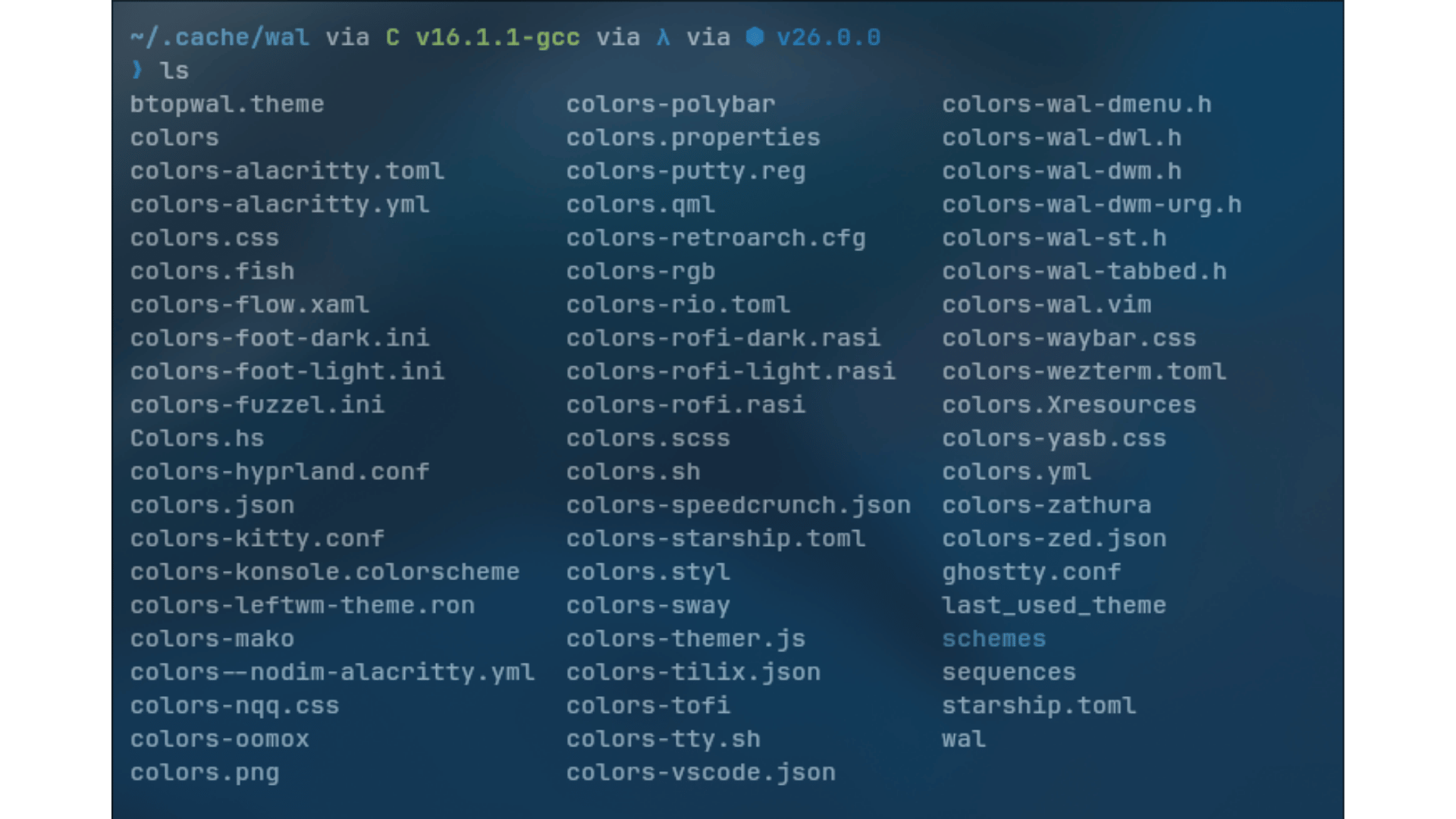
Because the configs reference the generated palette, I don't have to manually edit them every time. When I choose another wallpaper, pywal generates another palette and the rest of the desktop updates to match it.
The Result
Now changing my entire Linux theme takes basically one command. I run the script. Choose a wallpaper. And everything updates. The wallpaper changes with an animation, Waybar gets the new colors, Rofi matches it, my terminal changes, and Hyprland follows the same palette. No more opening every config file individually. No more copying hex codes from a color picker. And no more spending twenty minutes changing my rice just because I wanted a different wallpaper. It’s a pretty small project, but it fixed something that had been annoying me for a long time. And now I can change the look of my entire desktop whenever I want without having to rice everything from scratch again.